





How to Check if a Backlink Is Dofollow or Nofollow (Step-by-Step)
You’ve secured a backlink from a relevant website, the article is live, and your link appears exactly where it should. But there’s one detail worth verifying before you mark the placement as complete: is the…
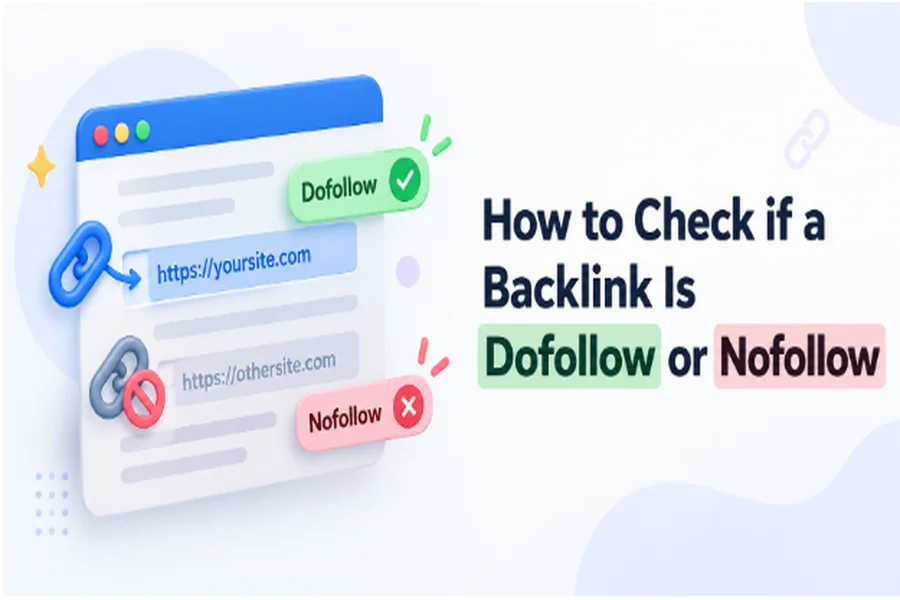
You’ve secured a backlink from a relevant website, the article is live, and your link appears exactly where it should. But there’s one detail worth verifying before you mark the placement as complete: is the backlink dofollow or nofollow?
A hyperlink can look perfectly normal to visitors while carrying HTML attributes that affect how search engines interpret it. That distinction matters when you’re reviewing guest posts, auditing acquired backlinks, or preparing reports for SEO clients.
Fortunately, you don’t need expensive software to check backlink attributes. You can inspect the HTML manually, use browser extensions, or analyze multiple pages with a dedicated checker.
This guide explains four practical methods to identify dofollow and nofollow backlinks, interpret their attributes, and verify important details beyond link status.
How to Tell if a Backlink Is Dofollow or Nofollow
The quickest way to determine a backlink’s status is to inspect its HTML <a> element and look for the rel attribute.
A standard hyperlink without a qualifying rel value is generally considered a followed link. If the link contains rel=”nofollow”, rel=”sponsored”, or rel=”ugc”, it carries additional instructions or hints for search engines.
Here’s how the HTML differs:
| Link type | HTML example | What it indicates |
| Followed | <a href=”https://example.com”>Example</a> | No qualifying link restriction |
| Nofollow | <a href=”https://example.com” rel=”nofollow”>Example</a> | Signals that the publisher does not want to endorse the destination through a normal followed link |
| Sponsored | <a href=”https://example.com” rel=”sponsored”>Example</a> | Identifies advertising or paid placements |
| UGC | <a href=”https://example.com” rel=”ugc”>Example</a> | Identifies user-generated content links |
An important technical detail: dofollow is not an official HTML rel value required by Google. A normal followed link doesn’t need rel=”dofollow”.
For a faster check, especially when verifying published guest posts, use the Dofollow Nofollow Checker to examine link attributes, anchor text, and destination URLs from supplied source pages.
Method 1: Check Backlink Status Using Inspect Element
Chrome, Firefox, Edge, and other modern browsers include developer tools that let you inspect a webpage’s HTML.
This method is particularly useful when you need to verify one backlink without relying on third-party software.
Step 1: Open the Page Containing Your Backlink
Visit the exact webpage where your backlink appears.
For example, suppose your company recently published a guest article on an industry blog. Open that published article rather than the website’s homepage.
Step 2: Right-Click the Backlink
Locate the hyperlink pointing to your website.
Right-click the linked text and select Inspect. Your browser’s developer tools will open with the corresponding HTML element highlighted.
On Chrome, you can also open DevTools using Ctrl + Shift + I on Windows or Cmd + Option + I on macOS.
Step 3: Examine the Anchor Tag
Look for an HTML element similar to:
<a href=”https://yourwebsite.com/”>
Your Website
</a>
Because the link has no nofollow, sponsored, or ugc attribute, it is generally classified as followed.
Now compare it with:
<a href=”https://yourwebsite.com/”
rel=”nofollow”>
Your Website
</a>
The second link contains a nofollow attribute.
You might also encounter combined attributes:
<a href=”https://yourwebsite.com/”
rel=”nofollow sponsored”>
Your Website
</a>
This indicates that the publisher has marked the link as both nofollow and sponsored.
Step 4: Confirm the Destination URL
Don’t stop after checking the rel attribute.
Inspect the href value to ensure the link points to the intended destination. A backlink can have the expected anchor text but lead to an incorrect URL, redirect, or tracking destination.
When to use this method: Inspect Element works best for checking individual links and investigating unexpected attributes.
Method 2: Check Dofollow and Nofollow Backlinks Using an Online Tool
Manually inspecting links becomes time-consuming when you’re managing several guest-post placements or reviewing multiple source pages.
A dedicated checker can help organize these checks and reduce repetitive work.
The GUESTPOSTLINKS Dofollow–Nofollow Link Checker provides two workflows: auditing links found on webpages and verifying backlinks pointing to a specified target.
Step 1: Open the Backlink Checker
Visit the tool and locate its link-analysis interface.
Step 2: Choose the Backlink Verification Mode
Select Verify my backlinks when your goal is to confirm whether specific pages contain links to your website.
The alternative page-audit mode is better suited to reviewing internal and external links across supplied webpages.
Step 3: Enter Your Source URLs
Paste the URLs of pages where your backlinks are expected to appear.
For example, if your agency recently secured placements on five blogs, enter those five published article URLs.
The tool’s documented interface supports checking up to 20 source pages in one submission.
Step 4: Specify the Target Domain or URL
Enter the website or destination you want to verify.
Use domain-level matching when checking links pointing anywhere on your website. Choose exact URL matching when you need to confirm a backlink to one specific page.
This distinction matters when a publisher links to your homepage instead of the agreed landing page.
Step 5: Run the Check and Review Results
Start the scan and inspect the returned link information.
Pay attention to:
- Link status: Whether the link is followed or carries nofollow, sponsored, or UGC attributes.
- Anchor text: The visible words associated with the hyperlink.
- Destination URL: Where the backlink actually points.
- Source page status: Whether the checker can access the submitted page.
- Additional directives: Relevant robots, redirect, or canonical information when available.
A missing match doesn’t automatically mean the publisher removed your backlink. Confirm that the page was successfully fetched and the matching settings were correct.
Step 6: Export Your Findings
Where supported, copy or export the results for further review.
This is useful for SEO agencies maintaining placement records, freelancers reporting completed outreach campaigns, and website owners tracking published backlinks.
When to use this method: Choose a dedicated checker when you need structured verification across multiple known source pages.
Method 3: Check Dofollow and Nofollow Links Using Page Source
Viewing a webpage’s source code is another way to inspect link attributes without installing additional tools.
Step 1: Open the Source Code
Visit the webpage containing your backlink.
Right-click an empty area and select View Page Source. In Chrome, you can also use Ctrl + U on Windows or Cmd + Option + U on macOS.
Step 2: Search for Your Website
Press Ctrl + F or Cmd + F and search for your domain name.
If the backlink appears in the HTML source, locate the surrounding <a> element.
Step 3: Check the Rel Attribute
Inspect the link’s href and rel values.
If the anchor contains rel=”nofollow”, the link is qualified as nofollow. If no qualifying value exists, the link is generally followed.
Important limitation: Page source shows the HTML originally returned by the server. JavaScript may add or modify links after the page loads.
If you cannot locate a visible backlink in the source code, check the live DOM using Inspect Element before concluding that the link is missing.
Method 4: Identify Nofollow Links Using Browser Extensions
Browser extensions can make backlink inspection easier by highlighting links with specific attributes.
Some SEO extensions visually distinguish followed links from nofollow links, while others display attributes when you hover over a hyperlink.
A typical workflow involves installing a reputable extension, opening the source page, enabling link highlighting, and inspecting the backlink.
However, extensions have limitations.
They may not show every attribute, identify the final destination after redirects, or provide the reporting capabilities needed for bulk verification.
Before relying on an extension, confirm that it supports the attributes you need and review its browser permissions.
For a single webpage, an extension can be convenient. For multiple published placements, a structured backlink verification report is usually easier to review.
How to Verify Multiple Guest Post Backlinks Efficiently
When managing outreach campaigns, checking whether a link is followed should be part of a broader placement verification process.
Imagine your team has published 15 guest posts across different websites. Instead of checking each article manually, create a source URL list and run a target-specific backlink check.
Record the following information for every placement:
| Verification field | What to confirm |
| Source URL | The correct article is live |
| Target URL | The backlink points to the agreed destination |
| Anchor text | The publisher used the expected wording |
| Link attribute | Followed, nofollow, sponsored, or UGC |
| HTTP status | The source page is accessible |
| Verification date | The latest inspection is documented |
Keep in mind that a backlink checker working from supplied source URLs is not the same as a backlink index that discovers links across the entire web.
A source-page checker verifies known placements. It doesn’t automatically find every website linking to your domain.
For ongoing campaigns, save the verification results and recheck important placements when necessary.
What Else Should You Check Beyond Dofollow or Nofollow?
A followed backlink isn’t automatically a valuable backlink. Several other technical details influence how a link can be discovered, interpreted, or evaluated.
1. Destination URL and Redirects
Confirm that the backlink points to the intended page.
If the URL redirects, investigate where visitors and crawlers ultimately land. A redirect isn’t necessarily harmful, but unexpected destination changes deserve attention.
2. Anchor Text
Review whether the anchor text accurately describes the destination.
A natural, relevant anchor helps users understand what they’re clicking. Excessive keyword-rich anchor text in links created primarily to manipulate rankings can raise link-spam concerns.
3. Source Page Accessibility
Check whether the linking page returns a successful HTTP response.
Pages returning errors or requiring authentication may prevent search engines from accessing the backlink normally.
4. Robots Directives
Inspect relevant page-level directives, including meta robots and X-Robots-Tag headers.
A page-level nofollow directive is different from a rel=”nofollow” attribute on an individual hyperlink.
Also, robots.txt controls crawling permissions; it doesn’t guarantee that a URL will be excluded from Google’s index.
5. Canonical Information
Review the source page’s canonical URL when investigating duplicate or syndicated content.
A canonical tag provides a preferred URL signal, but Google may choose a different canonical based on other signals.
These checks provide context. They cannot establish precisely how much ranking value Google assigns to a backlink.
Why a Backlink May Not Appear in Your Checker
Sometimes a backlink appears in your browser but isn’t detected during an automated scan.
Several issues can explain the discrepancy.
The publisher changed the link. The original backlink may have been removed, replaced, or redirected to another destination.
The source page cannot be fetched. Server errors, authentication requirements, or automated-access restrictions may prevent the checker from retrieving its content.
JavaScript generates the link. Some scanners analyze retrieved HTML without executing every script. A dynamically inserted backlink may therefore be missed.
The target matching is too strict. Exact URL matching may fail when the publisher links to a different path, hostname, or URL variation.
The submitted source URL is incorrect. Confirm that you’re checking the published article rather than an archive, preview, or unrelated page.
When a backlink is missing from a report, manually inspect the live page before contacting the publisher.
Frequently Asked Questions
How do I know if my backlink is dofollow?
Inspect the backlink’s HTML using browser developer tools or a link checker. A standard anchor without nofollow, sponsored, or ugc is generally considered followed.
Can a backlink be both nofollow and sponsored?
Yes. An HTML link can contain multiple space-separated rel values, such as rel=”nofollow sponsored”. Google supports combining relevant link attributes.
Do dofollow backlinks always improve Google rankings?
No. A followed link is not a guarantee of ranking improvement. Google evaluates links alongside many other signals, and the presence of a backlink doesn’t establish how much value it contributes.
Can I check several backlinks at once?
Yes. Tools supporting bulk source-page verification can check multiple known placements. You still need to provide the relevant source URLs and verify that each page was scanned successfully.